PPL
The PPL tab allows integration with the PPL pick-up point network in the Czech Republic (ParcelShop pick-up points, ParcelBox and AlzaBox parcel lockers).
Once the integration is enabled, the customer selects a PPL pick-up point on a map while placing an order. The map is the official PPL widget and shows pick-up points in the country of your account. For cash on delivery, only points that accept cash on delivery are shown.
Note
The integration covers only the selection of the pick-up point by the customer. In the order you will find the
point code (KM...) needed for dispatch. Labels and parcel dispatch remain in the PPL system.
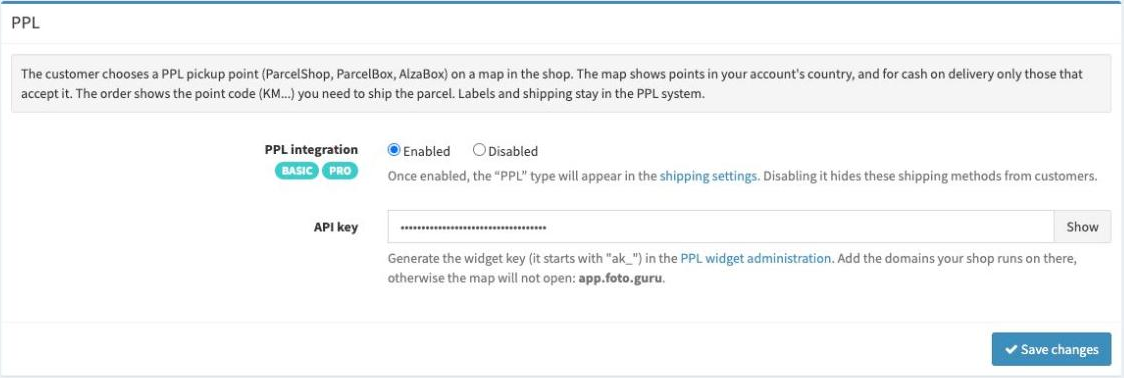
Available options
Here is a list of the available options with a short explanation.
- PPL integration
Determines whether the PPL integration is active. Once enabled, the
PPLtype becomes available in thePick-up pointoption of the delivery settings. Disabling it hides delivery options of this type from customers. To use the integration, you must have an active BASIC or PRO account.- API key
The PPL widget key (it starts with
ak_), generated in the PPL widget administration. The key is used only for displaying the map, not for parcel dispatch. Below the field you will find the list of domains that must be added to the key settings. Below we show how to get the key.
Important
The PPL widget works only on the domains added to the API key settings. Without them, the map will not open
for your customers. Add all domains shown below the API key field in Foto.Guru:
app.foto.guru- always,your own domain (e.g.
photo.example.com) - if it has been approved in the page settings.
Enter the domain exactly as shown in Foto.Guru, without https:// or a path. If you connect or change your own
domain later, remember to add it in the PPL widget administration as well.
Getting the API key
The key is created in the PPL widget administration at https://klient.ppl.cz/widgetadmin.
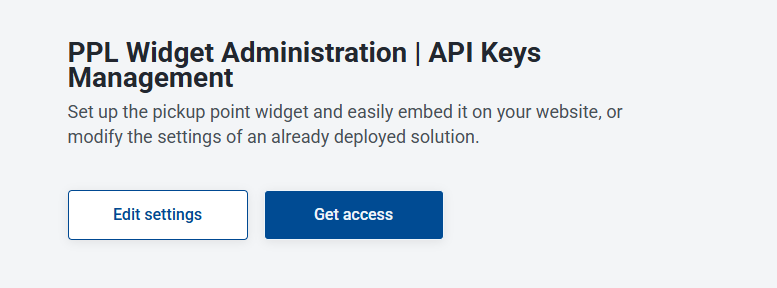
Click Get access.
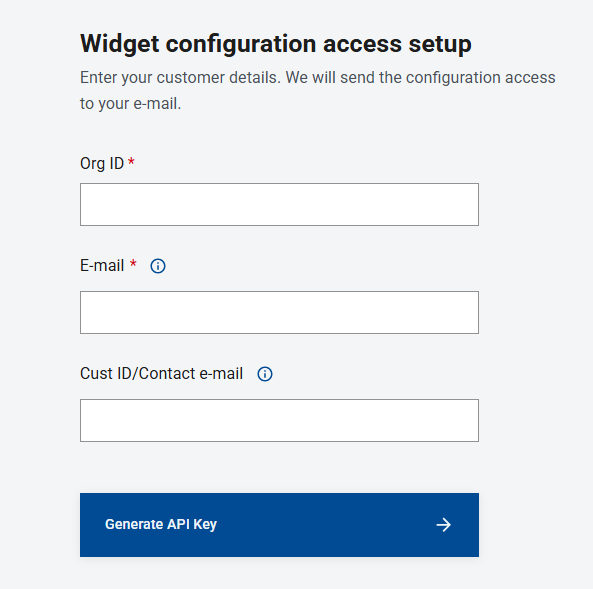
Enter your PPL customer details and e-mail address, then click Generate API Key.
You will receive an e-mail with an activation link. The link opens the widget administration.
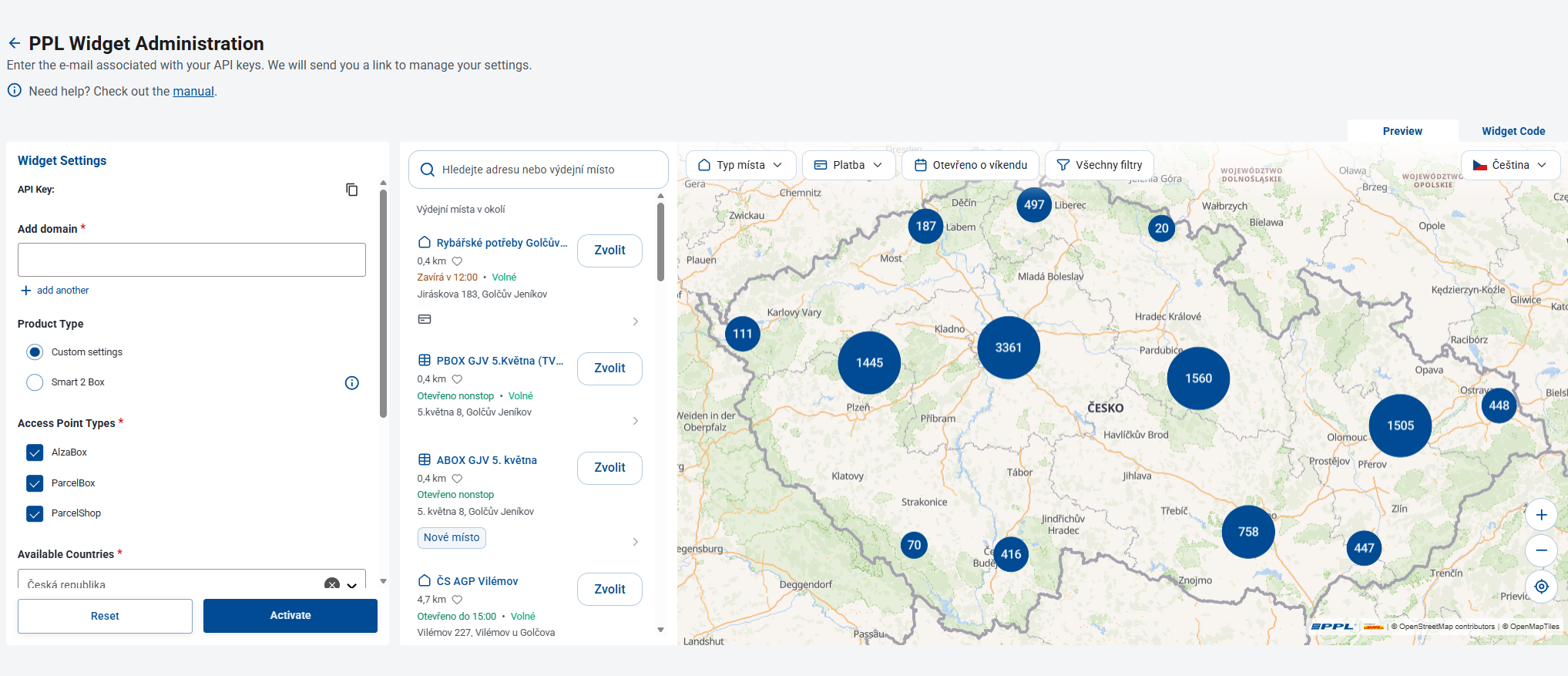
In the Widget Settings panel set:
Add domain -
app.foto.guru, then click add another and enter your own domain, if you have one (see the note above),Product Type -
Custom settings,Access Point Types - the point types you want to offer your customers (
AlzaBox,ParcelBox,ParcelShop),Available Countries - leave
Česká republika.
Click Activate. Without activation, the key and the changes in its settings will not work.
Copy the key using the icon next to API Key, paste it into the
API keyfield in Foto.Guru and save the changes.
You do not need the code from the Widget Code tab - Foto.Guru loads the widget itself. The language and the display mode of the map are also set by Foto.Guru.
Tip
Parcel lockers (ParcelBox, AlzaBox) do not accept cash on delivery. If you offer delivery with cash on
delivery, select ParcelShop as well - otherwise customers paying on delivery will not see any points.
Changing the key settings
To add a domain later or change other settings, go to https://klient.ppl.cz/widgetadmin again.
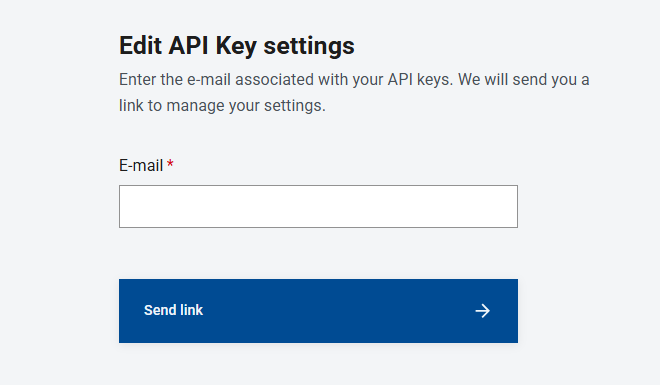
Click Edit settings, enter the e-mail address associated with your key and click Send link.
Open the link from the e-mail. The widget administration opens with the same settings as above.
Make the changes and click Activate.
Delivery with pick-up at a PPL point
Once the integration is enabled, add or edit a delivery method in the delivery settings and select
PPL in the Pick-up point option. From then on, customers who choose this delivery method will see a map of
PPL pick-up points, and you will find the selected point in the order details.