Print settings
The Print settings tab is the place where we can set the basic parameters for ordering prints.
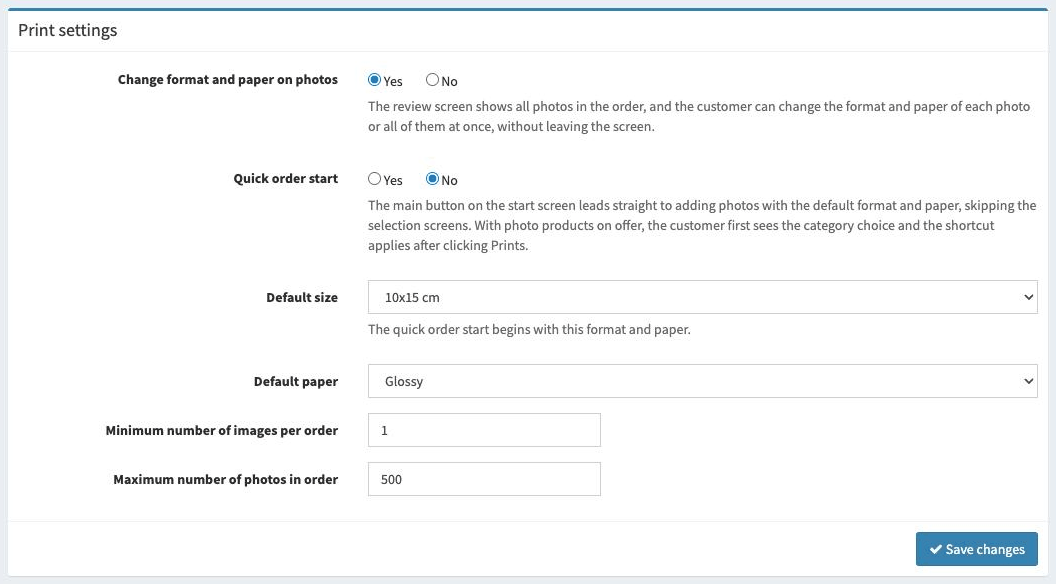
Available options
Here is a list of the available options with a short explanation.
- Change format and paper on photos
Determines whether the customer can change the format and paper after adding photos. If the option is enabled, the review screen shows all photos in the order, and the customer can change the format and paper of each photo separately or of all of them at once - without leaving the screen.
- Quick order start
Determines whether the main button on the start screen should lead straight to adding photos - with the default format and paper, skipping the selection screens. With photo products on offer, the customer first sees the category choice, and the shortcut applies after clicking
Prints.- Default size
Determines the default print format that will be selected when placing an order. The quick order start also begins with this format.
- Default paper
Determines the default paper type that will be selected when placing an order.
- Minimum number of images per order
Determines the minimum number of photos the customer must upload within one order.
- Maximum number of photos in order
Determines how many photos the customer can upload within one order. The maximum limit that can be set is 1000 photos. This is a limitation imposed by the size of the file that will be generated for download.
Note, however, that the limit on the number of photos per order has nothing to do with the total number of prints that will be ordered (each photo can be ordered in any number of copies).