Orlen Paczka
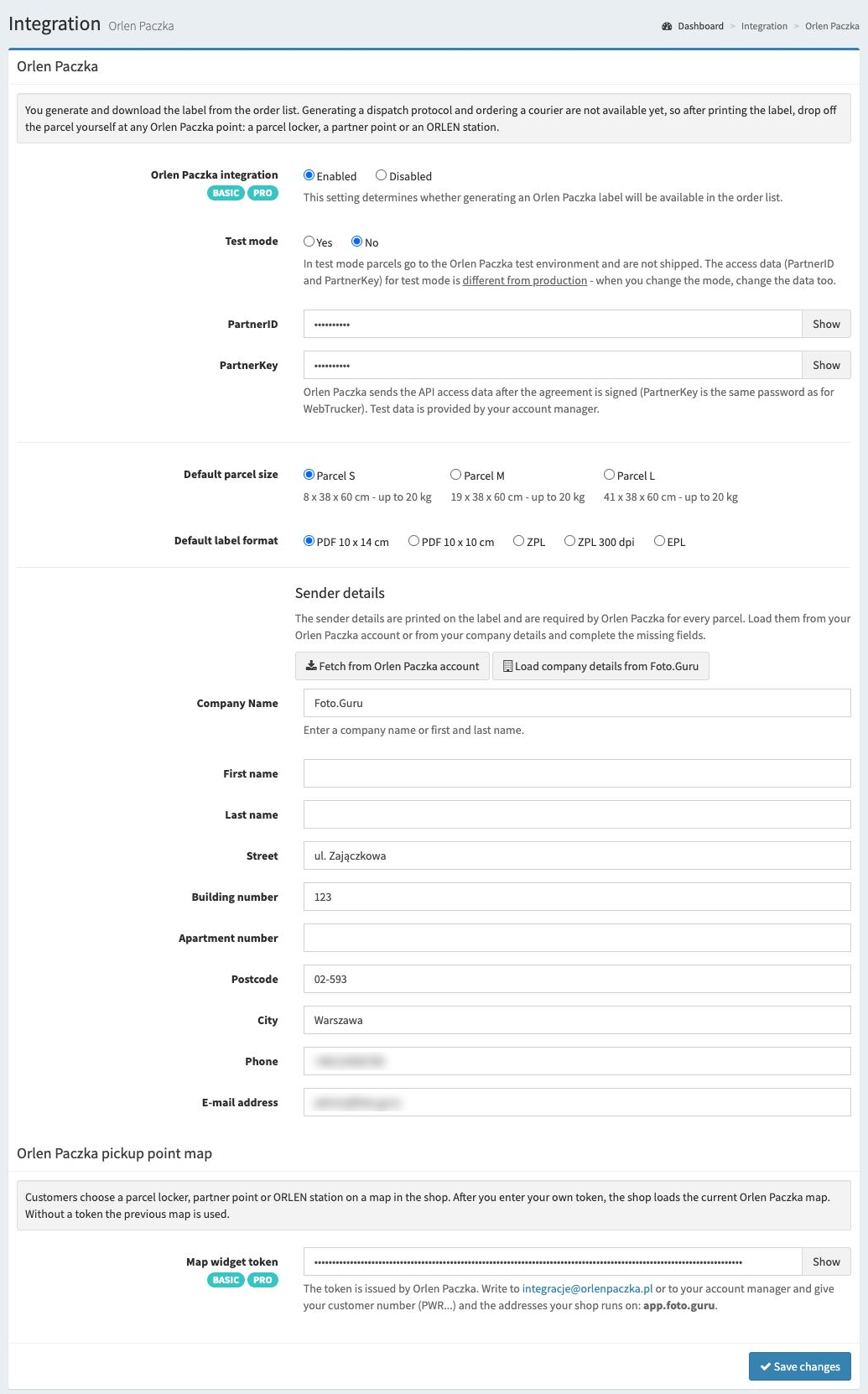
The Orlen Paczka tab allows integration with Orlen Paczka in terms of generating labels and displaying a map of pick-up points in the shop, on which the customer chooses where to collect the parcel.
Note
Orlen Paczka is a Polish pick-up point network. The minimum data we need to collect from customers in order to generate a label is an email address and a Polish phone number. Orders are only fulfilled within Poland. The integration does not support cash on delivery parcels.
Warning
Generating a dispatch protocol and ordering a courier are not available yet. After printing the label, drop off the parcel yourself at any Orlen Paczka point: a parcel locker, a partner point or an ORLEN station.
Access data
Orlen Paczka does not provide a panel where you can generate the integration data yourself. You will receive all the data you need by email after contacting your Orlen Paczka account manager:
PartnerIDandPartnerKey- the API access data that Orlen Paczka sends after the agreement is signed.PartnerKeyis the same password you use to log in to WebTrucker (the Orlen Paczka parcel tracking panel),a separate
PartnerIDandPartnerKeyfor test mode - your account manager provides them on request,the map widget token - described in the Orlen Paczka pickup point map section.
Available options
Here is a list of the available options with a short explanation.
- Orlen Paczka integration
Determines whether the Orlen Paczka integration is active. If it is active, an additional button will appear on the order list, which allows you to generate a label for the given order. For this to be possible, you must have an active BASIC or PRO account, and the delivery method selected by the customer must be Orlen Paczka.
When you enable the integration, we check whether
PartnerIDandPartnerKeyare correct. If Orlen Paczka does not accept them, you will see an error message and the settings will not be saved.- Test mode
Determines whether the integration works in test mode or not. In test mode parcels go to the Orlen Paczka test environment and are not shipped, so you can safely check the whole label generation process. The label generation window then shows an additional test mode warning.
Note
The access data for test mode is different from production (and vice versa). When you change the mode, change
PartnerIDandPartnerKeytoo.- PartnerID
The identifier of your account in the Orlen Paczka API, sent by Orlen Paczka by email.
- PartnerKey
The access key to the Orlen Paczka API, sent by Orlen Paczka by email. It is the same password you use in WebTrucker.
- Default parcel size
Determines the default size of the parcel you will create. You can change it for each parcel when generating the label.
Parcel S - 8 x 38 x 60 cm, up to 20 kg
Parcel M - 19 x 38 x 60 cm, up to 20 kg
Parcel L - 41 x 38 x 60 cm, up to 20 kg
- Default label format
Determines the default format of the generated label: PDF 10 x 14 cm, PDF 10 x 10 cm, ZPL, ZPL 300 dpi or EPL. The ZPL and EPL formats are useful if you print labels on a thermal printer.
Sender details
The sender details are printed on the label and Orlen Paczka requires them for every parcel. When the integration is enabled, the following are required: company name or first and last name, street, building number, postcode, city, phone and email address. The apartment number is optional.
To avoid entering everything manually, you can use one of the buttons:
Fetch from Orlen Paczka account - loads the sender details stored in your Orlen Paczka account. Before clicking, enter
PartnerIDandPartnerKeyand set the appropriate Test mode,Load company details from Foto.Guru - loads the company details stored in your Foto.Guru account (the same ones you provide for licence invoices).
The buttons only fill in the form. Check the loaded data, complete the missing fields and click Save changes.
Orlen Paczka pickup point map
When placing an order, the customer chooses a parcel locker, partner point or ORLEN station on the Orlen Paczka map displayed in your shop. Once you enter your own map widget token, the shop loads the current Orlen Paczka map. Without a token the shop still works and uses the previous map, so you can complete this part of the configuration at any time.
Note
The map widget token is independent of the Orlen Paczka integration and Test mode options
and of the PartnerID and PartnerKey data - you can save it even if you do not generate labels in
Foto.Guru. The new map loads only for BASIC or PRO licences.
Getting the map widget token
The token is issued by Orlen Paczka. Write to integracje@orlenpaczka.pl or to your account manager and provide:
your Orlen Paczka customer number (it starts with
PWR),the addresses your shop runs on (without
https://). The list of addresses is shown in the Foto.Guru panel below the Map widget token field - usually it isapp.foto.guruand, if you use your own domain, that domain as well.
You will receive the token in the reply email. Copy it in full, paste it into the Map widget token field and save the changes.
Warning
The map will only open on the addresses Orlen Paczka issued the token for. If you connect your own domain later, ask Orlen Paczka for a new token that also covers it. Otherwise the customer will not be able to choose a pick-up point.
The token is verified when saved. If Orlen Paczka does not recognise it or it was copied incompletely, you will see an error message and the token will not be saved. The shop addresses assigned to the token cannot be checked from Foto.Guru, so after saving the token open your shop and make sure the map loads.
Generating labels for an order
If the Orlen Paczka integration is enabled, a new button will be added to orders placed with Orlen Paczka delivery, which allows you to generate a label.
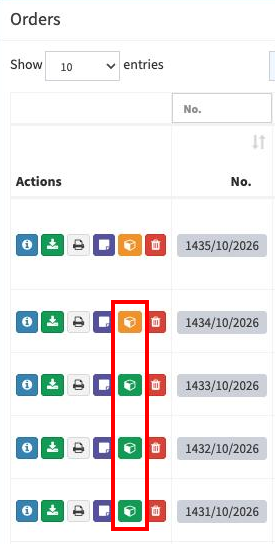
The orange colour of the button means that the label has not been generated yet, while the green colour means that it has been generated. If you wish, you can download an already generated label at any time, e.g. choosing a different format.
Generating a label
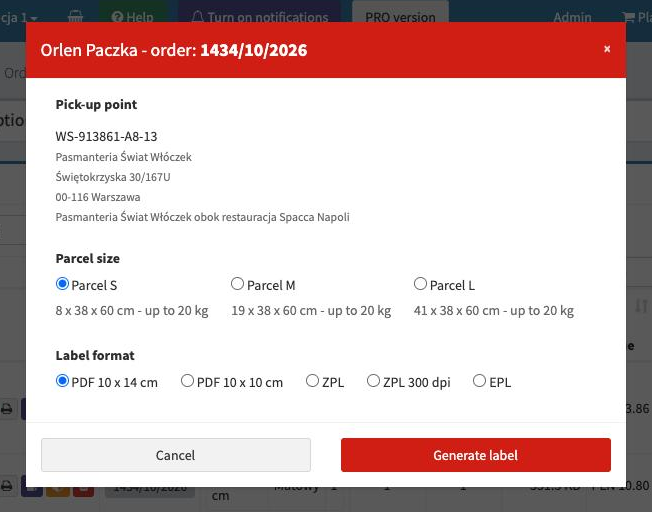
After clicking the orange button (with a box), a window will load with the pick-up point chosen by the customer and the default parcel size and label format options selected.
If we have set the default options sensibly, it is usually enough to simply click “Generate label” for the process to start. If there are no errors, the label should be downloaded automatically, and the parcel number will be saved in the order as the shipment tracking number. The order number is also printed on the label.
If the order has neither the recipient’s first and last name nor a company name, an additional Recipient field will appear in the window, because Orlen Paczka requires this data.
In case of errors, they will be displayed in the window.
Warning
If after generating the label you see a message that the Orlen Paczka account has no signed agreement (PREPAID), the parcel has been created but cannot be shipped. In that case, contact your Orlen Paczka account manager.
Downloading a label again
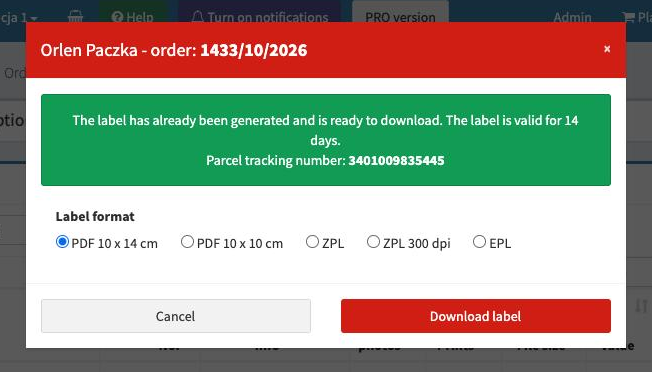
If for some reason you want to change the label format or download it again, after clicking on an already generated label (green button with a box), you can download it again, choosing the desired format or keeping the default settings. The window also shows the parcel tracking number.
Note
The label is valid for 14 days after it is generated. Drop off the parcel at any Orlen Paczka point within that time.