Klarna
Here is an explanation of the payment settings for the Klarna operator.
Klarna is a Swedish payment operator that lets customers pay now, later or in instalments. It is available for studios from Austria, Belgium, the Czech Republic, Denmark, Finland, France, Germany, Greece, Hungary, Ireland, Italy, the Netherlands, Poland, Portugal, Romania, Slovakia, Spain, Sweden, the United Kingdom and the United States.
Available options
Here is a list of the available options with a short explanation.
- Klarna API username
Determines the username of the API key from the Klarna Merchant Portal (the
Usernamevalue, shown asKey ID (API Username)in the list of keys).- Klarna API password
Determines the password of the same API key (the
Passwordvalue). It starts withklarna_live_(production account) orklarna_test_(Klarna Playground).
You create both values in the Klarna Merchant Portal. Below we show step by step how to do it.
Tip
Test mode uses a separate test account - Klarna Playground. If you enable Test mode in Foto.Guru, enter the
API username and password from Klarna Playground. After you disable test mode, enter the credentials from the
production Klarna Merchant Portal. Keys from one environment do not work in the other.
Currency
Klarna accepts payments only in the currency of the country where your company is registered - e.g. PLN for
Poland, CZK for the Czech Republic, EUR for Germany or Slovakia. Set this currency in the Currency field in
the payment settings before you select the Klarna operator. With any other currency, Foto.Guru will
not save the settings and will show a message with the currency you need to use.
Settings in the Klarna Merchant Portal
The examples below show the English version of the Klarna Merchant Portal.
Klarna account
To accept payments, you need a Klarna Payments merchant account approved by Klarna.
Go to the Klarna documentation and click Log in in the top menu.
Select the region (Europe for studios in Europe) and the Production environment.
Click Sign up and follow Klarna’s instructions.
Once your account is approved, you log in to the Klarna Merchant Portal at:
https://portal.klarna.com
Note
Only if you want to try payments in Test mode first, select the Playground environment in step 2.
This creates a separate, free test account - its panel is at https://portal.playground.klarna.com, and
customers cannot make real payments through it.
API keys
You create the API key in the same way in the production and the test panel - log in to the one whose credentials you want to enter in Foto.Guru.
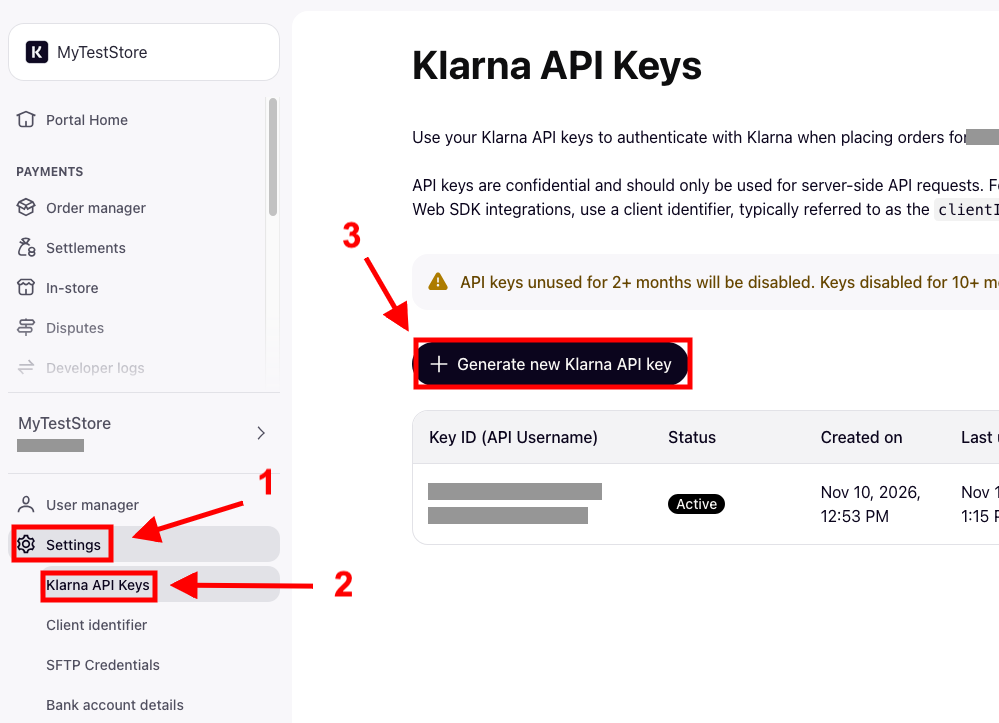
In the left menu, click Settings.
Select Klarna API Keys.
Click Generate new Klarna API key.
New API key
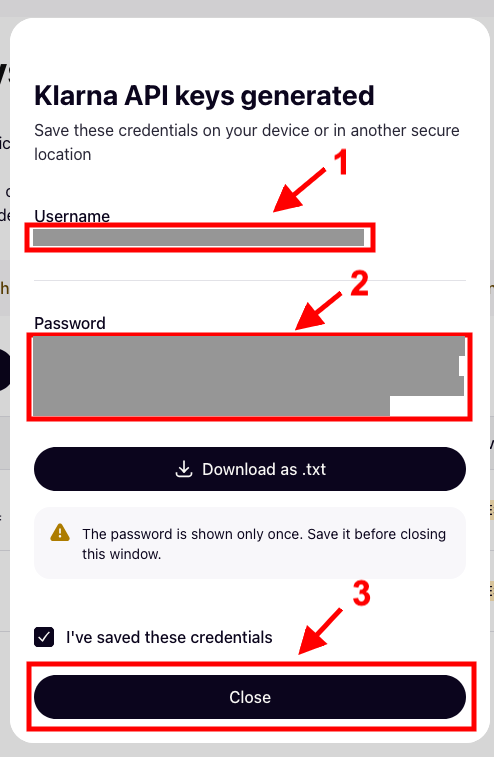
In the Klarna API keys generated window:
Copy the value of the
Usernamefield and paste it in Foto.Guru in theKlarna API usernamefield.Copy the value of the
Passwordfield and paste it in Foto.Guru in theKlarna API passwordfield.Tick I’ve saved these credentials and click Close.
Before closing the window, you can also click Download as .txt to save the key details to a file - keep it in a safe place.
Finally, save the changes in Foto.Guru. When saving, Foto.Guru checks with Klarna that the username and password are correct.
Important
The API password is shown only once - right after the key is created. Klarna does not store it, so it cannot be read again after the window is closed. If you lose it, create a new API key and enter the new credentials in Foto.Guru.
The API password gives access to your Klarna payments - do not share it with anyone.
Common problems
Klarna did not accept the API username and passwordCheck that the credentials come from the right environment: with
Test modeenabled - from Klarna Playground, with test mode disabled - from the production Klarna Merchant Portal. Also make sure that no character was left out when copying. Klarna disables API keys that have not been used for a long time - if in doubt, create a new key.In ..., Klarna accepts payments only in ...The studio currency does not match the currency of your company’s country. Change the
Currencyfield to the one shown in the message.- The
Klarnaoperator does not appear in the list Klarna is available only for studios from the countries listed at the beginning of this page. What counts is the company country given in your Foto.Guru account details.